If you’ve ever managed a Minecraft server, you know the dilemma: you want to refresh your world with a new build, layout, or design — but the moment you touch the map, panic sets in. What if players lose their bases? What if warps break? What about plugin data, shops, or spawn points?

It’s one of the most common fears among server owners. You want your world to stay fresh and exciting, but you don’t want to destroy everything your players have worked for.
The truth is, you can safely update pre-built Minecraft maps without losing progress. With smart planning, backups, and modular map management, you can give your world a complete facelift while keeping every warp, plugin, and player build intact.
In this guide, you’ll learn how to update your maps the right way — why it’s important, how to protect your data, and what techniques professionals use to transition seamlessly between old and new versions.
Let’s make map updates exciting, not terrifying.
Maps Can Change — But You Shouldn’t Lose Everything
Every great Minecraft world evolves. Maybe your spawn layout needs an upgrade. Maybe you want to add seasonal themes or improve navigation. Maybe your community has outgrown the original design. But no matter the reason, one thing’s universal: losing player progress isn’t an option.
That’s why knowing how to update pre-built Minecraft maps properly is essential. Most server owners avoid updates altogether because they’ve heard horror stories — corrupted files, vanished inventories, or broken worlds. But in most cases, the issue isn’t the update itself — it’s the lack of a clear plan.
When handled strategically, updating your world doesn’t have to mean starting over. You can refresh visuals, improve performance, and expand gameplay without wiping the slate clean.
This guide will show you how to do exactly that, using both in-game tools like WorldEdit and smart server-side prep like plugin backups and modular setups.
Why Update a Pre-Built Map?
If your world already works, why risk changing it? Simple: players crave freshness. The best servers evolve constantly. Updating your environment keeps players curious, encourages exploration, and shows your community that you care about their experience.
Here are the main reasons why server owners choose to update pre-built Minecraft maps regularly.
Freshness Brings Players Back
Over time, even the most beautiful builds lose their novelty. Players who’ve memorized every corner of your spawn or city start to drift away. A visual refresh — new textures, lighting, or pathways — reignites excitement.
When players log in after an update and see that the world feels familiar yet improved, it gives them a reason to explore again.
Seasonal or Gamemode Shifts
Many servers rotate through seasonal events or switch gamemodes throughout the year — from survival to skyblock, from winter wonderlands to summer arenas. Updating your maps ensures your visuals match your theme.
For example, transforming a medieval hub into a snowy holiday village or a vibrant spring festival keeps your world aligned with current events. With modular builds, these updates can happen quickly without touching your players’ main regions.
Community Feedback
Sometimes, your players tell you what’s missing. Maybe the shops feel cramped, or the spawn paths are confusing. Listening to your community and making small improvements shows responsiveness — and keeps engagement high.
When you regularly update pre-built Minecraft maps, you’re sending a message that your server grows with its community. That sense of evolution builds long-term loyalty.
Smart Ways to Update Without Wipeouts
The secret to safe updates lies in preservation. You don’t need to rebuild everything from scratch — you just need to know what to move, what to replace, and how to back up the essentials. Here’s how to update like a pro.
Use WorldEdit Schematics
WorldEdit is your best friend for modular updates. It allows you to select, copy, and paste entire regions — from spawn areas to custom buildings — across worlds.
When updating, identify the structures you want to keep (for example, a player market, a shop hall, or a monument) and save them as schematics. Once your new map is ready, paste them into the updated environment.
This technique ensures you retain important landmarks or custom work without having to redo them by hand.
Here’s a quick best-practice workflow:
- Use //wand to select the area you want to save.
- Run //copy and then //schem save <name>.
- Load your new world, position yourself, and run //schem load <name> followed by //paste.
With this approach, you can safely update pre-built Minecraft maps and transfer only the parts that matter.
Clone Specific Regions Between Maps
If your world is divided into regions — spawn, shops, PvP zones, event areas — you can clone individual sections instead of moving the entire map. Tools like MCASelector or Amulet Editor allow you to manage map files directly, giving you granular control.
By cloning only key regions, you can merge new terrain or redesigned zones without overwriting player-built areas. This modular method is especially useful when expanding your world with new biomes or structures.
Backup Plugin Data and Configs
Plugins often hold crucial server information: player ranks, warps, inventories, economy data, and more. Before you update, always create a full backup of:
- The world and world_nether folders
- The plugins folder (especially config files)
- Any external databases used by plugins
You can even test your new map on a local or staging server first, ensuring compatibility before going live. Nothing kills excitement faster than broken permissions or lost player data — but proper backups eliminate that risk entirely.
Version Control for Custom Files
If you often modify your world or plugins, use a simple version control system like Git or backup snapshots. Each update becomes a saved version you can roll back to instantly. This method is especially valuable if you experiment frequently or run multiple events throughout the year.
Updating doesn’t have to mean chaos. With the right process, you can update pre-built Minecraft maps as smoothly as updating a plugin — without losing any progress.
Tips for a Smooth Update Rollout
Even if your technical setup is perfect, communication and timing can make or break your update. Here’s how to handle the rollout gracefully so your community stays excited — not anxious.
Communicate Early and Clearly
Don’t surprise your players with a sudden map change. Announce your update plan a few days in advance on Discord, your website, and in-game.
Explain why the update is happening — for example, to fix lag, improve navigation, or refresh the spawn — and outline the expected downtime. Players appreciate transparency, and it builds trust during transitions.
Create a Temporary “Update Lobby”
During maintenance, redirect players to a temporary lobby or holding world. This can be a fun mini area with parkour, trivia, or live countdown timers until reopening.
Even better, use this downtime to preview what’s coming — sneak peeks, lore hints, or teaser builds from the updated world. Keeping players engaged ensures they’ll return the moment you reopen.
Celebrate the Relaunch
After updating, host an in-game celebration. A small event or “grand reopening” party reminds players why they love your community. You can give away exclusive titles or cosmetic rewards for those who log in during the first 24 hours.
It’s not just an update — it’s an opportunity to reintroduce your server’s world with energy and pride.
Test Before Announcing Completion
Before officially declaring the update complete, test everything:
- Are all warps, spawns, and commands working?
- Are player inventories and ranks intact?
- Do plugins interact correctly with the new map?
A single broken teleport or missing chest can sour an otherwise perfect update. Take an extra hour to test — it’s worth it.
When done right, updating feels seamless to your players. The only thing they’ll notice is how much better your world looks and feels.
Use Modular Maps That Evolve With You
The best servers aren’t static — they grow, adapt, and evolve over time. But evolution doesn’t have to mean risk. The safest way to update pre-built Minecraft maps is to start with worlds designed for modularity and flexibility.
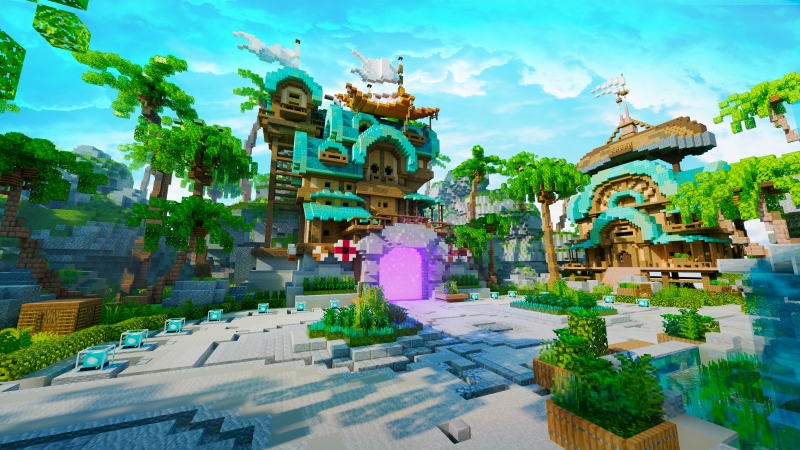
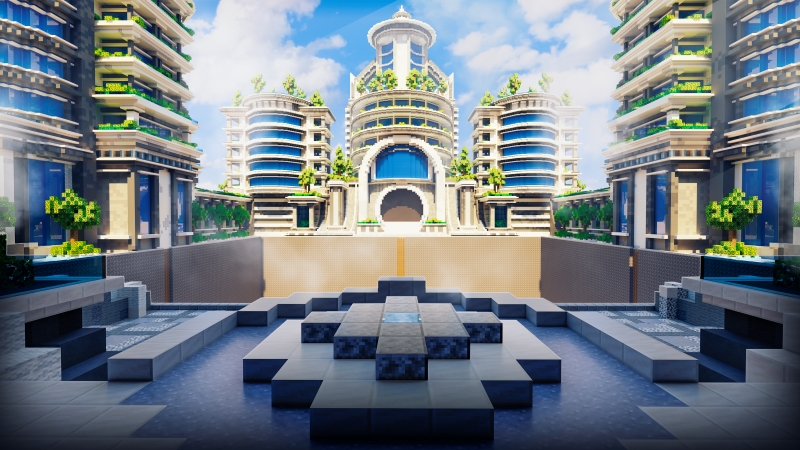
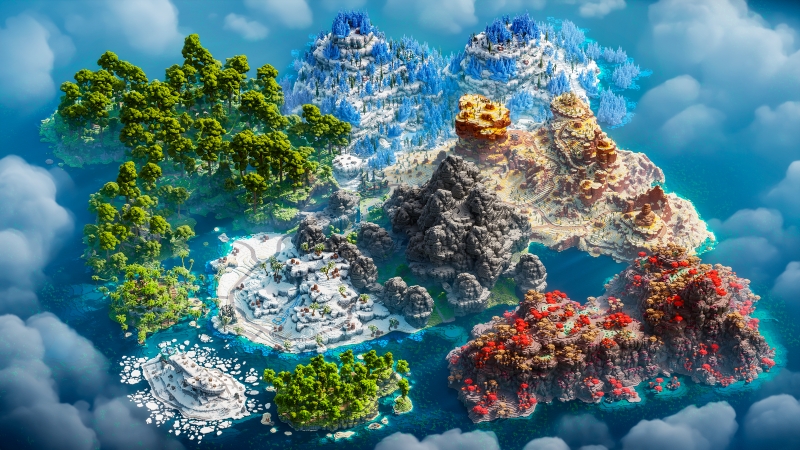
That’s where Keystone Builds Collections comes in. Our maps are built with updates in mind — structured to let you expand, replace, or redesign specific regions without disrupting player progress.
Here’s what makes Keystone maps ideal for long-term server development:
- Modular layout design: Each section (spawn, shop, PvP arena, lobby) functions as an independent zone that can be replaced or relocated easily.
- Region-friendly builds: Perfect for WorldEdit and schematic transfers.
- Optimized performance: Stable, low-lag design even after multiple updates.
- Consistent theme architecture: Ensures new expansions blend seamlessly with your original style.
By using modular pre-built worlds, you future-proof your server. You can refresh the look and layout seasonally, expand into new zones, or rebuild key areas — all while keeping your community’s data and creations safe.
So the next time you want to breathe new life into your world, don’t fear the process. With the right tools, backups, and mindset, you can update pre-built Minecraft maps confidently — without losing a single block of progress.
If you’re ready to modernize your server while protecting what matters most, explore Keystone Builds Collections today. Our worlds are engineered for evolution — designed to grow, change, and update with you.
Because a great server doesn’t just survive updates — it thrives through them.